
Please read carefully –
All FortiGate appliances are bundled with 10 free license of managed Forticlient that performs ‘Compliance Check’. If you go beyond 10, then additional license must be purchased. However, if you are using Forticlient for the purpose of VPN alone (without Compliance Check), then you don’t require additional license.
Remote Access VPN (IPSec VPN) provides secure encrypted tunnel for your remote users to access corporate network. Unlike SSL VPN, IPSec Remote Access VPN can be set up without any additional cost of SSL purchase.
Configure Remote Access IPSec VPN in FortiGate Firewall
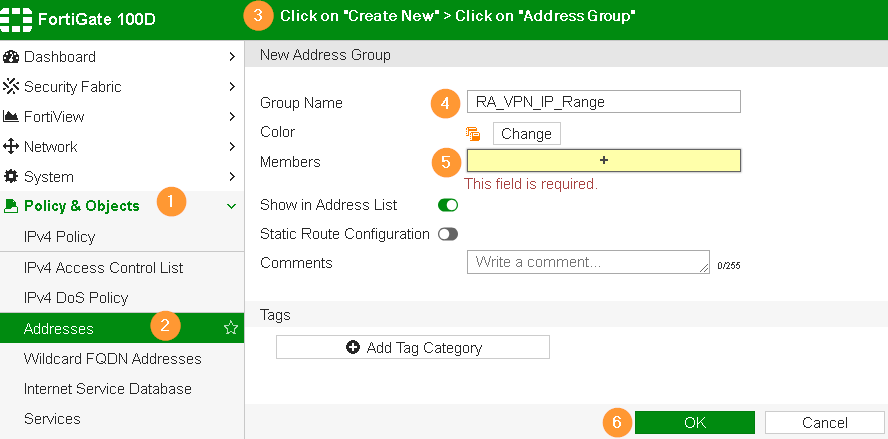
Step 1 – Create Address Group for Forticlient
Policy & Objects > Addresses > click Create New > click Address Group
You must choose the IP range that is never used in your network. While connecting to FortiGate firewall, Forticlients will receive IP address from this range. For example, 192.168.180.0/24
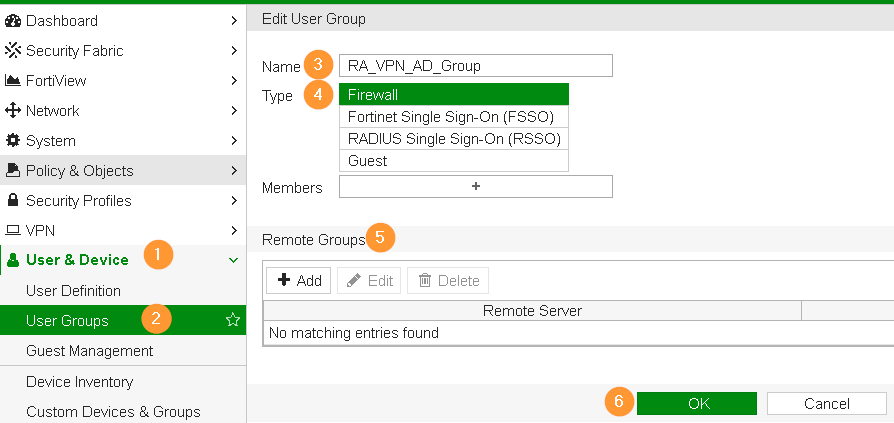
Step 2 – Create User and User Group
Our recommendation is to configure Active Directory User Group instead of creating local user account on firewall appliance. AD provides lots of convenience in user management.
 Starts at 30$ per month
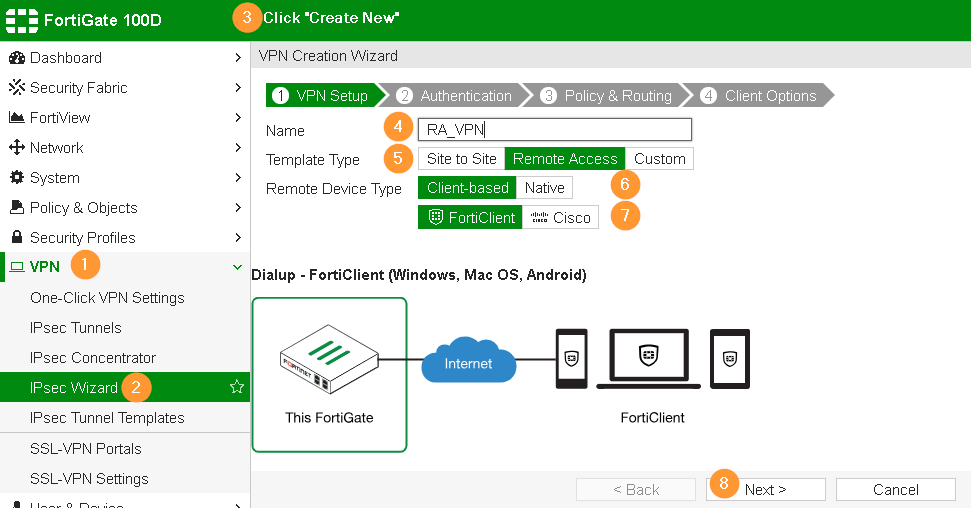
Step 3 – VPN Wizard
In the first wizard, choose Remote Access option and FortiClient connectivity.
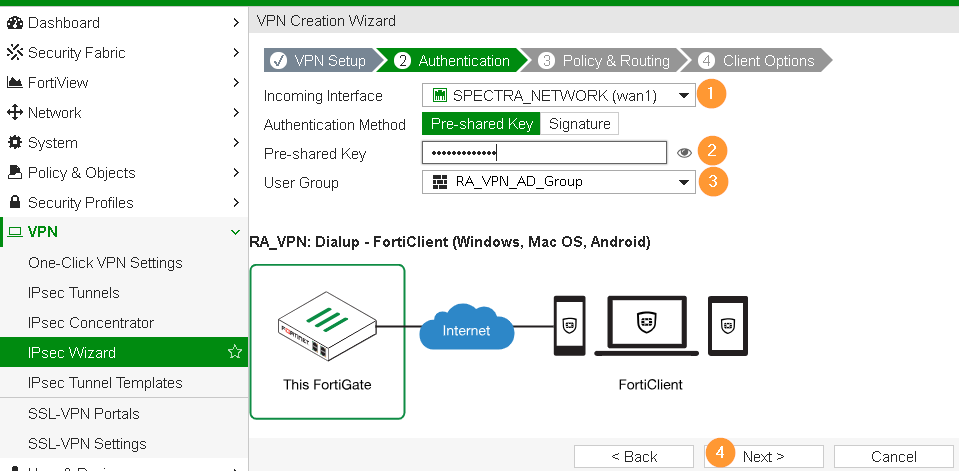
Specify Pre-shared key for firewall to authorize clients before prompting for additional credentials.
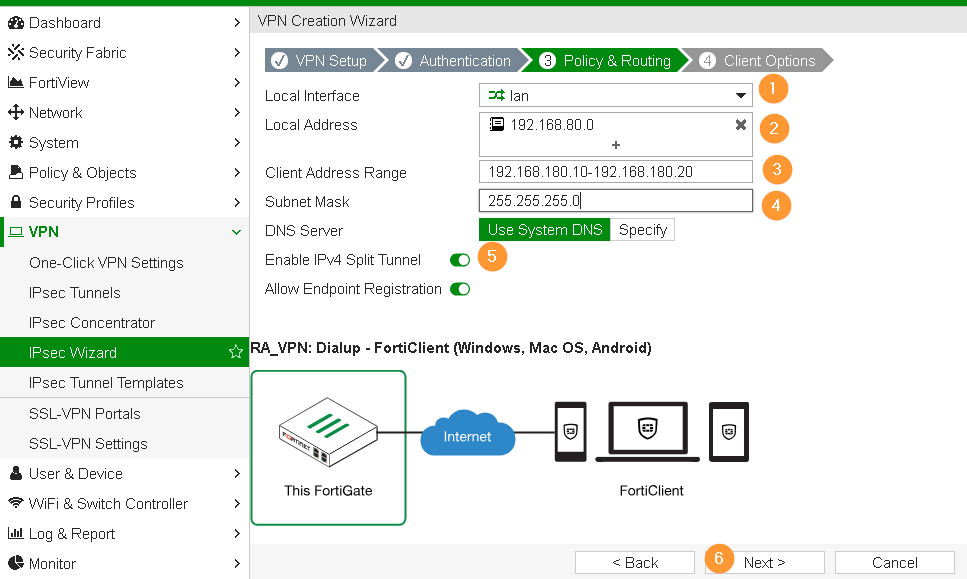
- LAN interface is the interface that your local systems are connected.
- Client Address Range: specify DHCP pool range for Forticlients, this should be in the same IP range as specified in Step 1.
- Split tunnel allows Forticlients to access your corporate systems and at the same, Internet can be accessed over their home, hotel or wherever they are located.
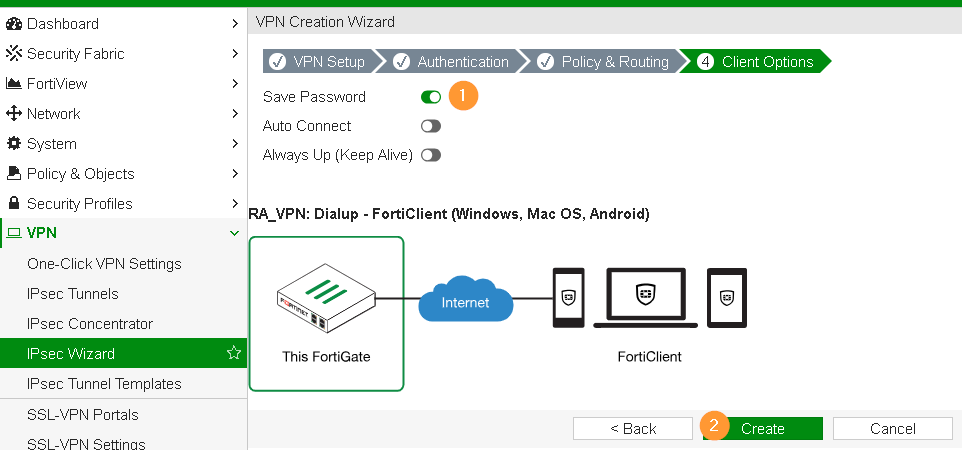
- Save Password: Allows the user to save the VPN connection password in the console.
- Auto Connect: When FortiClient is launched, the VPN connection will automatically connect.
- Always Up (Keep Alive): When selected, the VPN connection is always up even when no data is being processed. If the connection fails, keep alive packets sent to the FortiGate will sense when the VPN connection is available and re-connect.
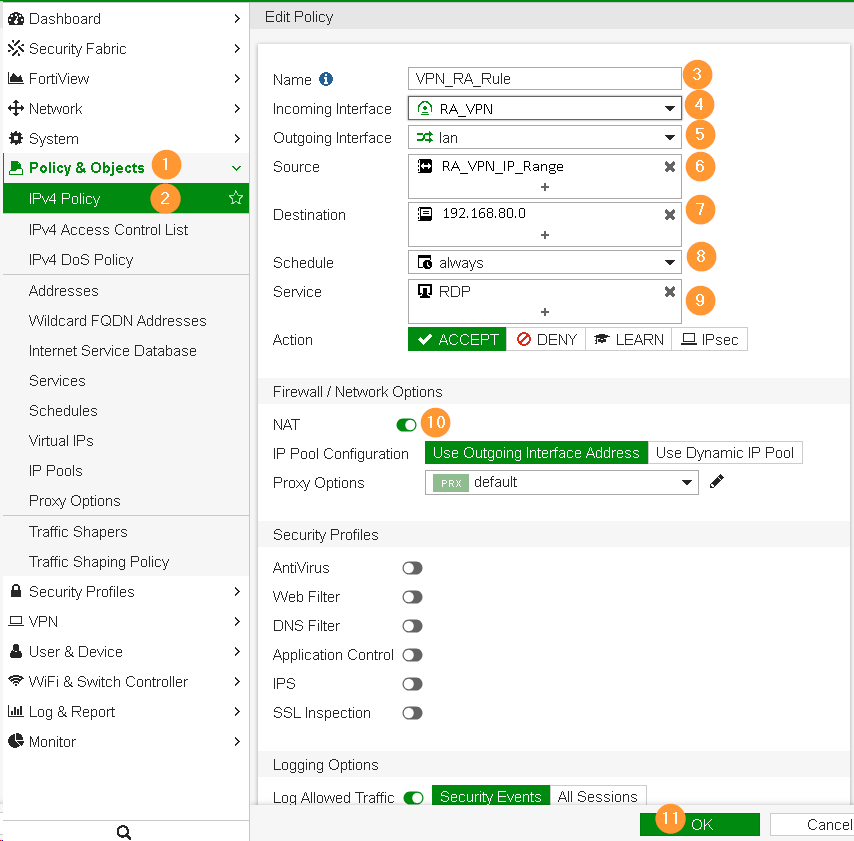
Step 4 – Create Firewall IPv4 Policy
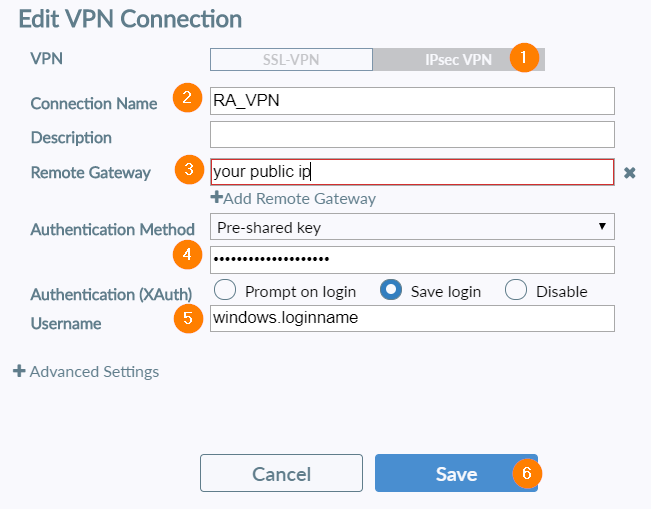
Final Step – Download and configure Forticlient
- Download Forticlient here and establish IPSec VPN connection to your corporate network.


Leave a Reply