
When you wanted to perform maintenance of a specific application, LTM has got a good feature where you can either disable or forced offline at pool member level (IP address and port), so the node (server) still serves client requests received on different ports for other application.
Before you proceed, identify the number of active connections of each pool member. LTM doesn’t provide a feature to failover the connections of one pool member to another, so you need to make sure that no active members are present in the pool.
Identify Number of Active Connections of each pool member
- Go to Local Traffic > Pools and choose your pool list.
- Click on Statistics tab to view active connections.
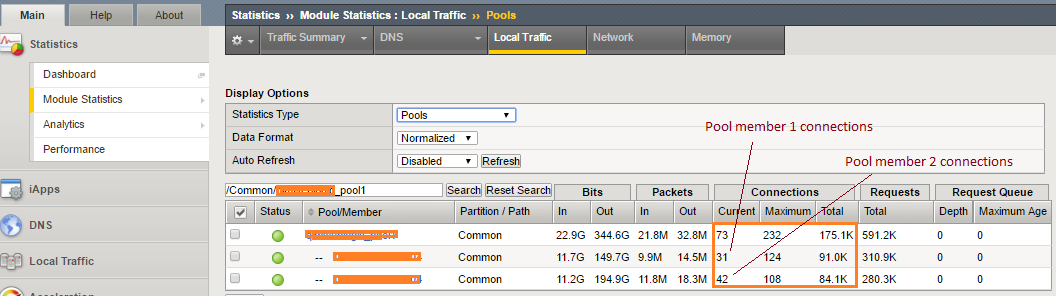
You need to understand these LTM terms to better understand the pool member statistics.
Current means Number of active connections.
Maximum means Highest number of active connections ever seen.
Total means Total number of connections that this pool member has handled since last reboot or statistics reset.
Setting the pool member to maintenance state
- Go to Local Traffic > Pools and choose your pool list.
- Click on Members tab to Disable or Forced Offline node by node.
When you set to Disabled, a node or pool member continues to process persistent and active connections. It can accept new connections only if the connections belong to an existing persistence session.
When you set to Forced Offline, a node or pool member allows existing connections to time out, but no new connections are allowed.
Delete existing connections to the pool member
If after disabling or forcing the pool member offline, you want to delete all the connections to that pool member serving on specific port, perform the following procedure.

 $2.75 per month
- SSH to F5 appliance
- Delete all connections to the pool member’s specific IP and port
tmsh delete /sys connection ss-server-addr 10.10.10.1 ss-server-port 80
ref: https://support.f5.com/csp/article/K13310#5


Leave a Reply to rsbs01 Cancel reply